


Microsoft Teams supports the installation of two main types of apps: Personal Apps and Channel Apps.
Personal Apps appear on the left sidebar of the Teams client.
Channel Apps appear as Tabs in Team Channels (Channels).
GoAutomate Apps ("Apps") are Channel Apps that you install as a Tabs in Channels. This way, everyone on your team can access an App without having to install it themselves. The App will be available to all team members through a Tab in the Channel.
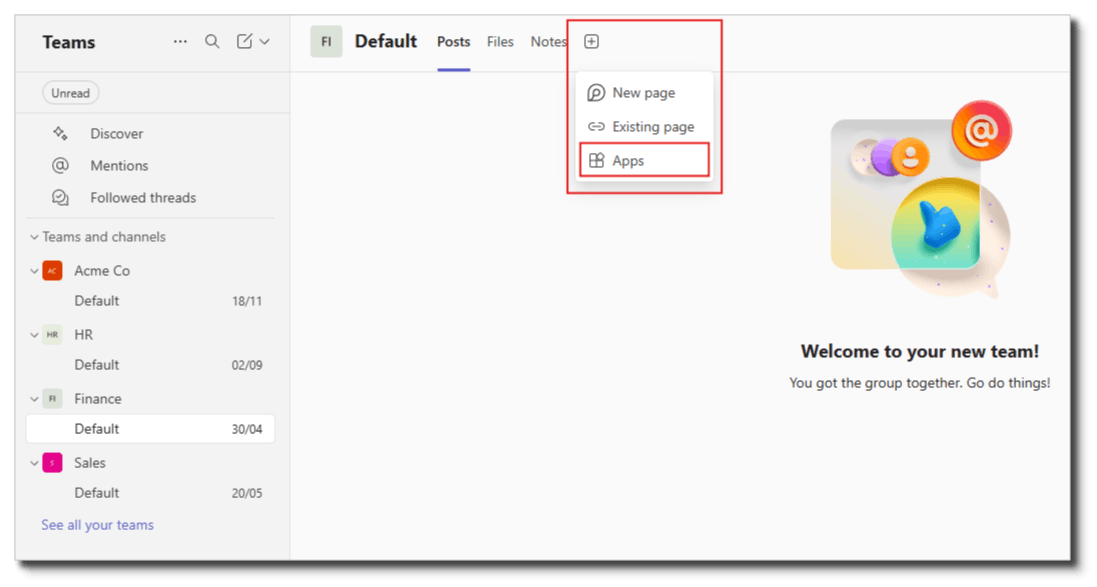
Team Channels are broken into two types:
Standard Channels: Accessible to everyone in the team.
Private Channels: Accessible only to selected members.
You can install Apps in both Standard Channels and Private Channels.
To install apps in Microsoft Teams, you need Administrator permissions. This applies to GoAutomate Apps as well. Here are your options:
Be a Microsoft Teams Administrator;
Have permission from your Microsoft Teams Administrator through a Policy;
Ask your Microsoft Teams Administrator to install the app for you;
Request approval from your Microsoft Teams Administrator so you can add the app.
Learn more:
Overview of app management and governance in Teams admin centre
Request apps that require approval by your org in Microsoft Teams
We keep GoAutomate Apps secure by using Microsoft Teams authentication. This means you don’t need new usernames or passwords for GoAutomate Apps. If you’re logged into Teams already, you can use GoAutomate Apps without logging in again. You’ll just need to click 'Continue with Microsoft Account' and Microsoft will confirm your identity to give you access to the GoAutomate App.
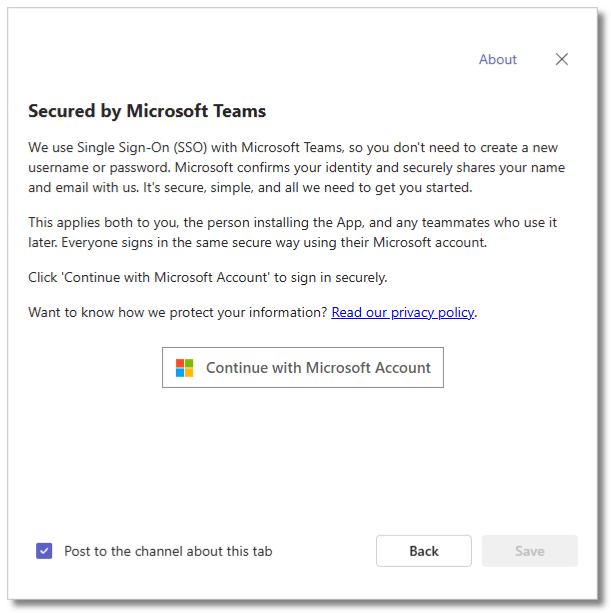
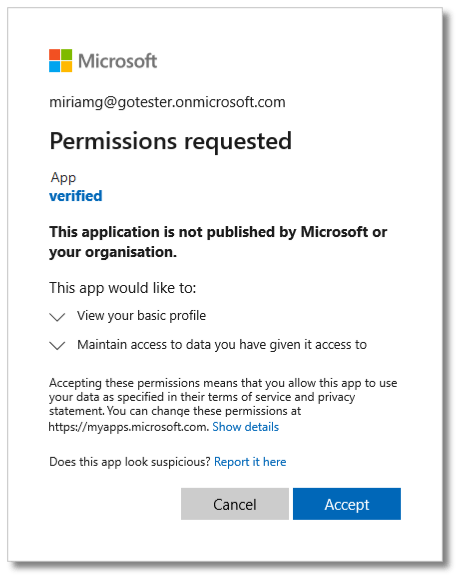
To install a GoAutomate App, you need to allow it to access some basic information about you and maintain the data you provide. These are the minimum permissions required by Microsoft for any app to work securely.
When you install a GoAutomate App in Microsoft Teams for the first time, you'll be asked to create a GoAutomate Account. You only need to provide basic company information; payment details aren't needed. You get a 30-day free trial with each App. To keep using it after the trial period, you'll need to add payment details.
